
It’s the oldest advice in tech support because it works: a restart clears out stuck programs, finishes updates and frees up memory. But on Windows, Shut down and Restart are not the same thing.
Note
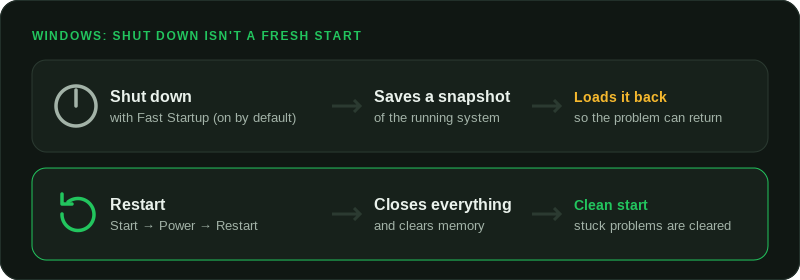
Windows has a feature called Fast Startup. When you choose Shut down, it saves a snapshot of the system and loads it back the next time, so a problem can come right back. ==Restart does a real, clean start.==
Windows
- Save anything you’re working on.
- Click the Start button (the Windows logo), or press the Windows key.
- Click the power icon.
- Choose Restart, not Shut down.
Mac
- Click the Apple menu in the top-left corner.
- Choose Restart…, then Restart again.
iPhone, iPad and Android
- iPhone and iPad: hold the side (or top) button together with either volume button until the slider appears, then slide power off. Older models with a Home button: hold just the side or top button.
- Android: hold the power button and tap Restart. On some phones, such as Pixel and Samsung, hold the power button and a volume button together instead.
Turn it back on after 30 seconds if it didn’t restart on its own.
If the computer is completely frozen
Hold the power button down for 10 seconds until it turns off. Wait a few seconds, then press it again to turn it on.
Caution
Holding the power button skips saving, so anything unsaved is lost. Use it only when nothing else responds, not even Ctrl + Shift + Esc (see A program froze: how to close it).
Tip
A good habit: restart your computer at least once a week. Lots of slowness and odd behavior simply goes away.